TABLE OF CONTENT
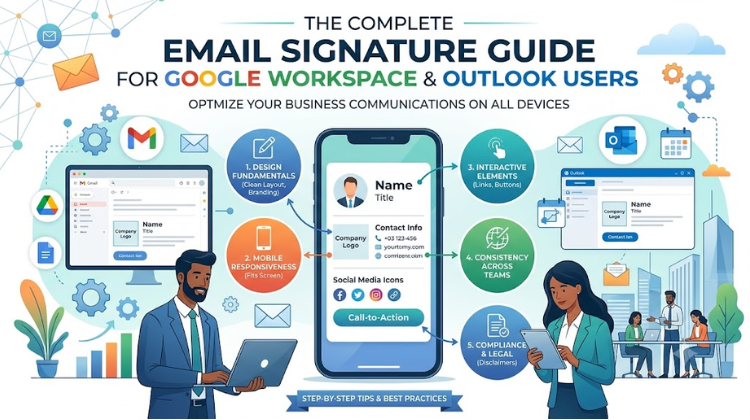
ToggleEvery day, your organization sends hundreds—or even thousands—of emails to prospects, clients, partners, and vendors. Yet, many businesses overlook one of the most visible branding channels available: the email footer. Following a structured Email Signature Guide allows companies to transform everyday email correspondence into an efficient marketing, branding, and compliance tool.
Whether your organization relies on Google Workspace, Microsoft Outlook, or a hybrid environment combining both platforms, implementing uniform email footers across all user accounts can be challenging. Differences in email client rendering, dark mode settings, mobile viewports, and local user configurations frequently result in broken images, inconsistent formatting, or missing contact details.
This complete Email Signature Guide explores best practices, design principles, platform-specific setup workflows, and centralized management strategies to help you deploy professional email signatures across Google Workspace and Microsoft Outlook.
An email signature is more than just a digital sign-off—it serves as a virtual business card, brand verification badge, and interactive marketing channel. Establishing a standardized Email Signature Guide across your company delivers several core operational benefits:
+-------------------------------------------------------------------------------------------------------+
|                    THE THREE PILLARS OF AN ENTERPRISE EMAIL SIGNATURE                                 |
+--------------------------+-----------------------------------+----------------------------------------+
| Pillars                  | Strategic Objective               | Measurable Outcome                     |
+--------------------------+-----------------------------------+----------------------------------------+
| 1. Brand Alignment       | Enforce uniform visual identity   | Consistent logo, typography, and       |
|                          | across all outbound communication | brand color display on every message   |
| 2. Marketing Activation  | Drive clicks to high-value assets | Increased traffic to booking links,    |
|                          | via dynamic call-to-action banners| landing pages, and event registrations  |
| 3. Regulatory Compliance | Satisfy legal, privacy, and industry| Automatic inclusion of mandatory legal |
|                          | disclosure requirements           | disclaimers and confidentiality notes  |
+--------------------------+-----------------------------------+----------------------------------------+
When team members create their own signatures manually, visual inconsistencies quickly emerge. Font choices vary, phone numbers follow different formats, and low-resolution or outdated logos appear. Following a clear Email Signature Guide ensures that every outgoing message represents your company professionally.
Email footers provide valuable real estate for marketing messaging. Adding clickable banners, appointment scheduling links, or links to recent case studies allows teams to drive engagement directly from daily business communications.
Depending on your industry and location, corporate emails may require specific legal disclaimers, company registration numbers, or privacy notices. A comprehensive Email Signature Guide ensures these legal statements are included automatically on outbound messages, supporting compliance efforts.
To build an email footer that renders properly across different devices and platforms, it helps to understand its underlying technical structure.
┌─────────────────────────────────────────────────────────────────────────┐
│                 STRUCTURED EMAIL SIGNATURE ARCHITECTURE                 │
└─────────────────────────────────────────────────────────────────────────┘
                                     │
                                     ▼
  ┌─────────────────────────────────────────────────────────────────────┐
  │ Primary Identity Block                                              │
  │ • Full Name & Job Title                                             │
  │ • Department & Company Name                                         │
  └─────────────────────────────────────────────────────────────────────┘
                                     │
                                     ▼
  ┌─────────────────────────────────────────────────────────────────────┐
  │ Contact & Digital Touchpoints                                       │
  │ • Direct Phone / Mobile (+1, +91 format)                            │
  │ • Company Website & Physical Address                                │
  │ • Social Media Icons (LinkedIn, X, YouTube)                         │
  └─────────────────────────────────────────────────────────────────────┘
                                     │
                                     ▼
  ┌─────────────────────────────────────────────────────────────────────┐
  │ Dynamic Banner & Legal Layer                                        │
  │ • Promotional Banner or Booking CTA Button                          │
  │ • Corporate Legal Disclaimer & Privacy Policy Link                  │
  └─────────────────────────────────────────────────────────────────────┘
HTML Table Construction: Build email signatures using basic HTML nested tables rather than complex CSS flexbox or grid layouts, which are not supported by many legacy email engines.
Inline CSS Styling: Apply styling directly to HTML elements (style="...") to prevent external or embedded stylesheets from being stripped out by webmail clients.
Web-Safe Typography: Choose universal fonts like Arial, Verdana, Georgia, or Tahoma to ensure consistent rendering on all devices.
HTTPS Image Hosting: Store company logos and social icons on fast, secure Content Delivery Networks (CDNs) using absolute HTTPS URLs rather than embedding raw image attachments.
Google Workspace provides robust email tools, but managing signatures across a growing team requires careful configuration. Following a step-by-step Google Workspace Email Signature Guide ensures proper setup for individual users as well as domain-wide deployments.
+-------------------------------------------------------------------------------------------------------+
|                    GOOGLE WORKSPACE SIGNATURE DEPLOYMENT OPTIONS                                       |
+--------------------------+-----------------------------------+----------------------------------------+
| Deployment Method        | Primary Advantage                 | Operational Constraint                 |
+--------------------------+-----------------------------------+----------------------------------------+
| Individual Web Settings  | Simple setup for single users     | Manual user entry; risk of layout      |
|                          | inside Gmail interface            | errors and non-standard fonts          |
| Admin Console Footer     | Automatically appends footer text | Appends to the very bottom of email    |
| (Compliance Tool)        | at the server gateway level       | threads; limited HTML formatting       |
| API / Service Account    | Centralized control across all    | Requires developer resources or        |
| Integration              | active user accounts              | specialized management platforms       |
+--------------------------+-----------------------------------+----------------------------------------+
For individual users configuring their signatures directly inside the Gmail web interface, follow these steps:
Open Gmail in your web browser and click the Settings gear icon in the top-right corner.
Select See all settings and scroll down to the Signature section on the General tab.
Click Create new, enter a name for your signature profile, and paste your formatted signature into the editor.
Set your default settings under Signature defaults for both For new emails use and On reply/forward use.
Check the box to “Insert signature before quoted text in replies” to place your footer directly under your latest reply instead of at the very bottom of the email thread.
Scroll to the bottom of the page and click Save Changes.
[ Gmail Settings ] ──► [ General Tab ] ──► [ Signature Section ] ──► [ Save Changes ]
IT administrators can append basic text or HTML footers across all outgoing emails using the Admin Console:
Log into the Google Admin Console.
Go to Apps > Google Workspace > Gmail > Compliance.
Scroll to Append footer and click Configure or Add another rule.
Input your HTML code, choose whether to apply the rule to internal or external recipients, and save the policy.
Note: While the Admin Console tool ensures footers are appended at the gateway level, it applies the same signature block to all selected users and appends it at the bottom of the entire email thread on replies.
Microsoft Outlook processes email signatures differently depending on whether users rely on the classic desktop application, the modern web interface (Outlook on the Web), or mobile clients. This section of our Email Signature Guide highlights key steps for Microsoft environments.
┌─────────────────────────────────────────────────────────────────────────┐
│                    OUTLOOK PLATFORM CONFIGURATION MAP                   │
└─────────────────────────────────────────────────────────────────────────┘
                                     │
            ┌────────────────────────┴────────────────────────┐
            ▼                                                 ▼
  ┌───────────────────┐                             ┌───────────────────┐
  │  Outlook Web App  │                             │  Outlook Desktop  │
  │ Cloud-synced via  │                             │ Stored locally in │
  │ Exchange settings │                             │ %AppData% folder  │
  └───────────────────┘                             └───────────────────┘
Open the Outlook desktop app and click File > Options > Mail.
Select Signatures… to open the signature editing menu.
Choose New, assign a name to the profile, and paste your signature layout into the rich-text box.
Assign default signatures for New messages and Replies/forwards using the drop-down menus.
Click OK to apply your settings.
Log into Outlook on the Web (Office 365).
Click the Gear icon (Settings) in the top-right corner and select View all Outlook settings.
Navigate to Mail > Compose and reply.
Under Email signature, create and format your layout.
Check the boxes to automatically include your signature on new messages and replies, then click Save.
Microsoft Outlook uses proprietary rendering engines (such as Microsoft Word for desktop Outlook) that automatically invert colors in dark mode. To keep your signature clear and readable:
Avoid pure black (#000000) or pure white (#FFFFFF) background containers.
Apply subtle outer strokes or drop shadows around dark logos so they remain visible on dark gray backgrounds.
Test your HTML code in both light and dark display modes across mobile and desktop apps.
Managing email signatures manually becomes increasingly difficult as an organization grows. Relying on employees to update their own contact details, social links, or marketing banners often leads to mismatched formatting, outdated links, and lost branding opportunities.
                     MANUAL VS. CENTRALIZED MANAGEMENT

  MANUAL SETUP (Fragmented):
  [ Employee A ] ──► Manual Paste ──► Broken Formatting / Wrong Logo
  [ Employee B ] ──► Manual Paste ──► Missing Phone / Outdated Title
  [ Employee C ] ──► Manual Paste ──► No Disclaimer / Broken Links

  CENTRALIZED MANAGEMENT (Unified):
  [ Central Admin ] ──► [ Central Cloud Tool ] ──► Auto-Sync to All Users
Inconsistent Branding: Employees may alter font styles, change colors, or upload low-resolution logo files.
Missing Legal Disclaimers: Important regulatory disclaimers may be edited or deleted accidentally.
Outdated Marketing Campaigns: Updating promotional banners requires every employee to manual swap out images, resulting in slow campaign rollouts.
Mobile Inconsistencies: Custom signatures created on desktop web browsers often break when sent from mobile email apps.
To solve the challenges of manual setup, modern organizations rely on centralized management platforms. ProSign Email by Amyntas Media Services offers an enterprise solution that allows teams to design, deploy, and maintain standardized signatures across Google Workspace and Microsoft Outlook automatically.
+-------------------------------------------------------------------------------------------------------+
|                    PROSIGN EMAIL MANAGEMENT CAPABILITIES                                              |
+--------------------------+-----------------------------------+----------------------------------------+
| Operational Capability   | Technical Implementation          | Enterprise Benefit                     |
+--------------------------+-----------------------------------+----------------------------------------+
| Directory Sync           | Connects with Google Workspace    | User details populate automatically    |
|                          | and Microsoft 365 directories     | from official employee records         |
| Centralized Template Hub | Visual drag-and-drop & HTML code  | Brand updates deploy across all        |
|                          | template managers                 | accounts instantly                     |
| Departmental Targeting   | Rule-based signature assignment   | Sales, Support, and HR teams get       |
|                          | by department or group            | tailored banners and links             |
| Gateway & API Injections | Server-side and client-side sync  | Signatures render reliably on desktop, |
|                          | models                            | web, and mobile devices                |
+--------------------------+-----------------------------------+----------------------------------------+
Automated Directory Integration: ProSign Email syncs directly with your company’s central directory (Google Workspace Directory or Microsoft Azure Active Directory). User names, job titles, phone numbers, and department details update automatically without manual intervention.
Instant Template Deployment: Update corporate logos, social media links, or legal disclosures from a central dashboard. Changes deploy across all connected user accounts instantly.
Targeted Campaign Banners: Schedule and run promotional banners based on department or user role. For example, your sales team can highlight booking links while your support team shares links to your help center.
Reliable Cross-Device Rendering: ProSign Email delivers HTML signatures optimized for mobile viewports, dark mode environments, and major desktop clients like Outlook and Gmail.
Simplified Tax and Billing Compliance: For organizations based in India, Amyntas Media Services provides local B2B invoicing in Indian Rupees (INR) with 18% GST compliance, eliminating foreign currency exchange surcharges and simplifying tax filing.
Before launching your email signatures across your organization, review this comprehensive checklist:
┌─────────────────────────────────────────────────────────────────────────┐
│                   DEPLOYMENT READINESS CHECKLIST                        │
└─────────────────────────────────────────────────────────────────────────┘
                                     │
  [ ] 1. HTML Formatting: Constructed using standard, clean HTML tables.
                                     │
  [ ] 2. Typography: Uses universal web-safe fonts (Arial, Helvetica, etc.).
                                     │
  [ ] 3. Asset Hosting: Images stored on secure HTTPS CDN servers.
                                     │
  [ ] 4. Dark Mode: Tested across light and dark theme viewports.
                                     │
  [ ] 5. Clickable Links: Phone numbers use `tel:` and web links work.
                                     │
  [ ] 6. Legal Compliance: Required legal disclaimers appended.
                                     │
  [ ] 7. Centralized Governance: Deployed via tools like ProSign Email.
By following this checklist, your organization can avoid common rendering issues and deliver professional, functional email footers on every outgoing message.
A well-crafted email signature helps reinforce your brand, support compliance efforts, and drive ongoing engagement. Following this Email Signature Guide provides your team with the tools and structure needed to establish high-performing, professional email signatures across Google Workspace and Microsoft Outlook.
Pairing clean HTML design principles with centralized management tools like ProSign Email by Amyntas Media Services streamlines administrative setup, ensures brand consistency across mobile and desktop clients, and transforms routine email exchanges into valuable corporate touchpoints. Email Signature Guide
#Google Workspace Signature #Outlook Email Signature #Email Signature Guide #ProSign Email #Amyntas Media Services #Central Signature Management #HTML Email Signature #Email Signature Template #Corporate Email Disclaimer #Dark Mode Email Signature #Mobile Responsive Signature #Gmail Signature Setup #Outlook Desktop Signature #Enterprise Email Branding #Email Footer Design #Email Signature Best Practices #Automatic Signature Sync #Directory Integration #Azure AD Signature #Google Admin Console #Email Marketing Banners #Email Signature Analytics #GST Compliant Invoicing #Gurgaon IT Services #Cloud Email Management #Email Deliverability #Professional Email Signatures #Email Footer Templates #Server Side Signature #Client Side Signature #Email Branding Strategy
Answer: The ideal width for a corporate email signature logo is between 150 to 250 pixels, with a height between 50 to 80 pixels. Keep the overall width of the entire email signature under 600 pixels to ensure it displays cleanly on mobile screens without requiring horizontal scrolling. For high-density displays (such as Retina screens), save image files at twice their display dimensions (e.g., a 400×160 pixel image displayed at 200×80 pixels) using clean HTML image tags (<img width="200" height="80">) to keep graphics crisp while maintaining proper layout dimensions. Email Signature Guide
Answer: To prevent email signatures from breaking or distorting in Outlook dark mode, avoid using fixed white or dark background colors on container cells. Use transparent PNG graphics for company logos and social media icons, and add a thin, light-colored outer stroke (or subtle border) around dark text or logos so they remain readable against dark backgrounds. Avoid relying entirely on raw image signatures, as dark mode engines often invert colors unpredictable. Combining live HTML text with dark-mode-tested transparent graphics ensures clear rendering across both light and dark themes. Email Signature Guide
Answer: Email signature images appear as attachments when they are embedded directly into the email body as base64 raw data or attached as inline files (cid: references). When email security filters or client engines encounter embedded image attachments, they often pull them out of the HTML body and treat them as downloadable file attachments. To prevent this, host all signature images on an external, secure HTTPS Content Delivery Network (CDN) and reference them in your HTML code using absolute web URLs (e.g., <img src="[https://yourdomain.com/logo.png](https://yourdomain.com/logo.png)">). Email Signature Guide
Answer: Amyntas Media Services, located in Sector-31, Gurugram (Gurgaon), helps businesses automate email signature workflows using its cloud platform, ProSign Email. The service connects directly with Google Workspace and Microsoft 365 directories, automatically updating employee details, titles, and phone numbers in standardized company templates. IT and marketing administrators can update logos, social media links, campaign banners, and legal disclaimers centrally without relying on manual user setup. Amyntas also offers local Indian Rupee (INR) invoicing with full 18% GST compliance and dedicated technical support. Email Signature Guide
Answer: Server-side central signature injection processes outgoing emails at the email gateway level before delivery. This approach offers several key benefits:
Universal Compatibility: Signatures are applied consistently across all devices, including mobile phones, tablets, and web browsers, without requiring local software installations.
Tamper-Proof Consistency: Employees cannot accidentally edit, alter, or remove required company details or legal disclaimers.
Simplified Administration: IT teams can manage signature rules, banner campaigns, and directory updates centrally from a single dashboard, ensuring full brand compliance across the company. Email Signature Guide
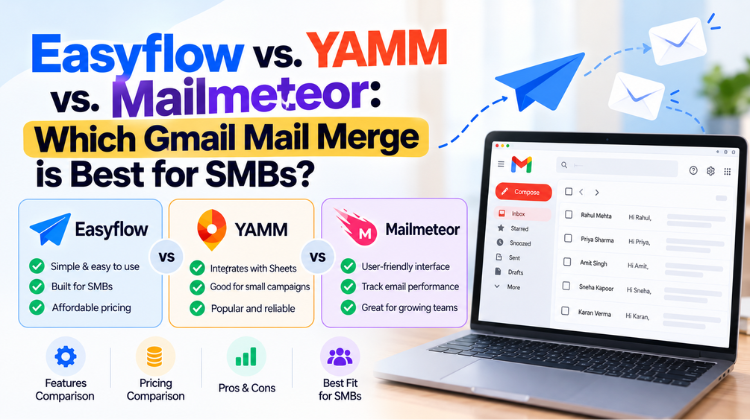 Easyflow vs. YAMM vs. Mailmeteor: Which Gmail Mail Merge is Best for SMBs?
  How SMBs Can Beat Gmail Limits & Avoid Spam with Easyflow Mail Merge
  7 Best Gmail Mail Merge Tools for SMBs in 2026 (Featuring Easyflow, GMass, YAMM & More)
  What Is the Safest Way to Buy a Zoho Workplace License Through a Partner?
  How to Seamlessly Migrate Business Email to Zoho Workplace via an Authorized Partner in 2026


© 2026 All Rights Reserved | Designed by Amyntas Media Works